Quick Start
Your first session with DESKERIO
For this quick start, you need a
business account
and a session partner whose computer you can control remotely.
1
Let's start with downloading the app.
2
Open DESKERIO.exe using your browser's download manager or by
double-clicking on the application in your Downloads folder.
DESKERIO initially starts in guest mode.
DESKERIO initially starts in guest mode.
3
Click Sign in at the bottom left and then enter your credentials.
Optionally, select Keep me signed in to permanently save your login information.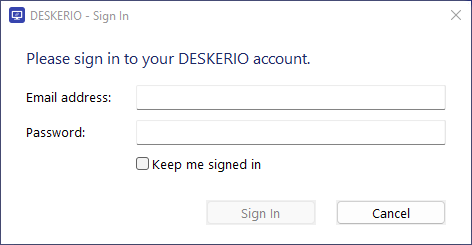
Optionally, select Keep me signed in to permanently save your login information.
4
Now click on Start session. This will create your first session and display the corresponding session PIN.![]()
![]()
5
Note: We’re showing the Launchpad route here.Guests may also use a previously downloaded app or download it here to join in guest mode, but for first-time or less experienced users, Launchpad is usually easier.
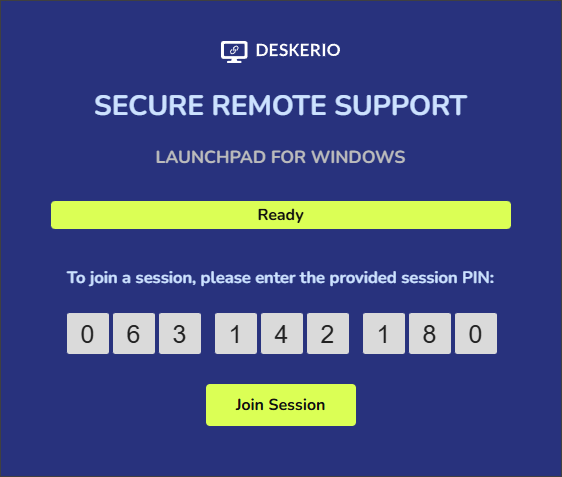
Ask your session partner to open the site join.support
in their browser and enter your Session-PIN.For your guest, it will look like this:
6
Once your guest clicks on Join Session, the app download will start automatically.
Your name, your company, and the download progress will be displayed to the guest.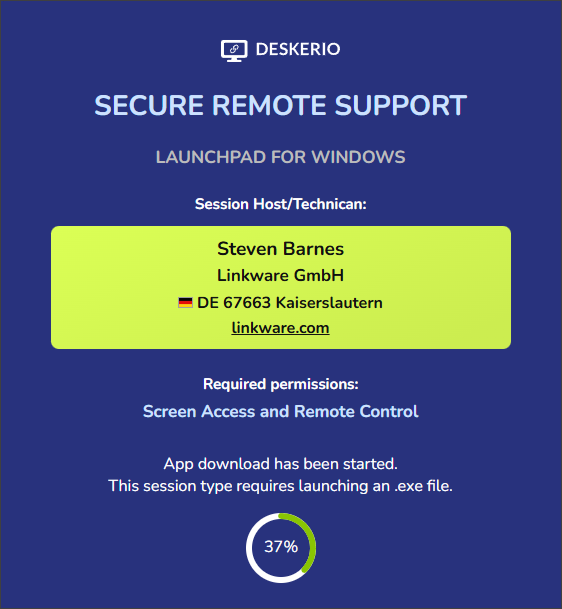
7
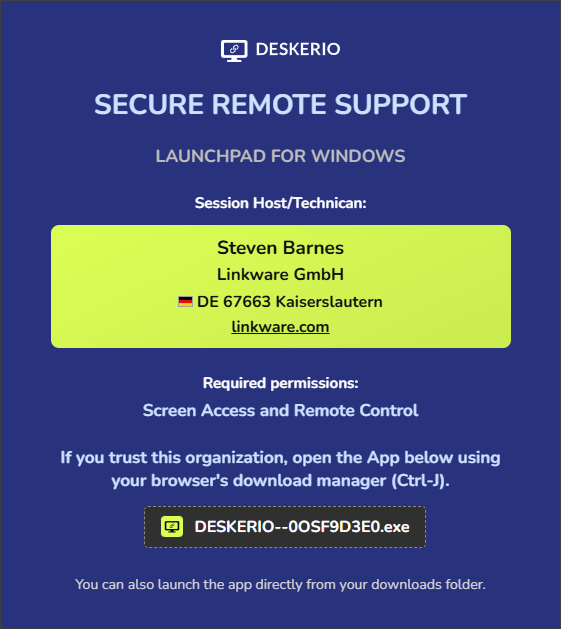
Once the download is complete, the app can be launched directly from the browser’s download manager.
Alternatively, it can be started by double-clicking the app in the Downloads folder.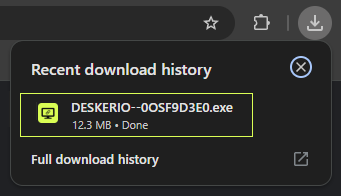
Alternatively, it can be started by double-clicking the app in the Downloads folder.
8
As soon as your guest has launched the downloaded app, our Remote Desktop Viewer
will open on your computer. You can now use it to remotely control the guest
computer as you wish.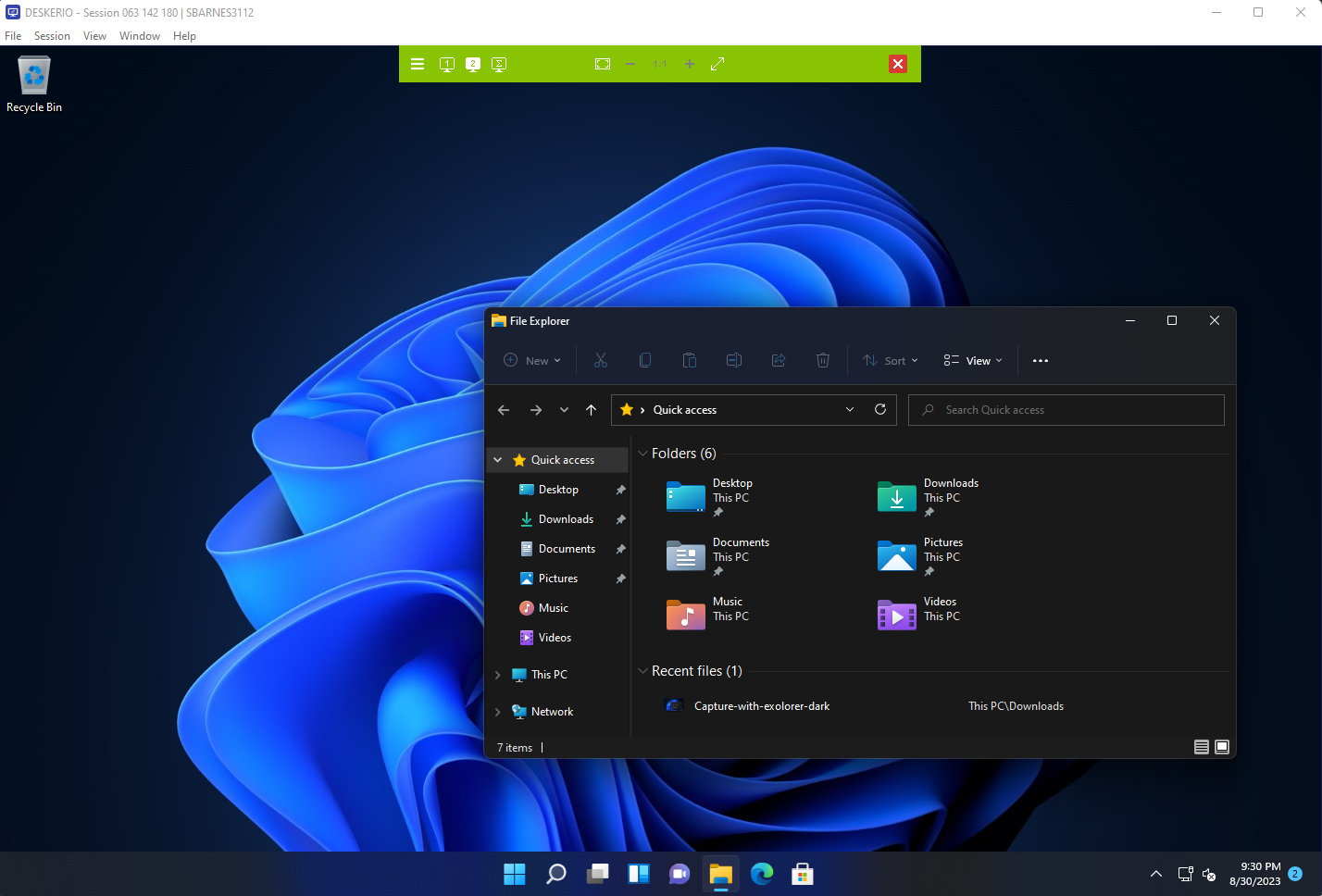
9
Congratulations, you have successfully started your first DESKERIO session.
You can now end the session at any time by simply closing the window or clicking on the
X
at the top of the control bar.